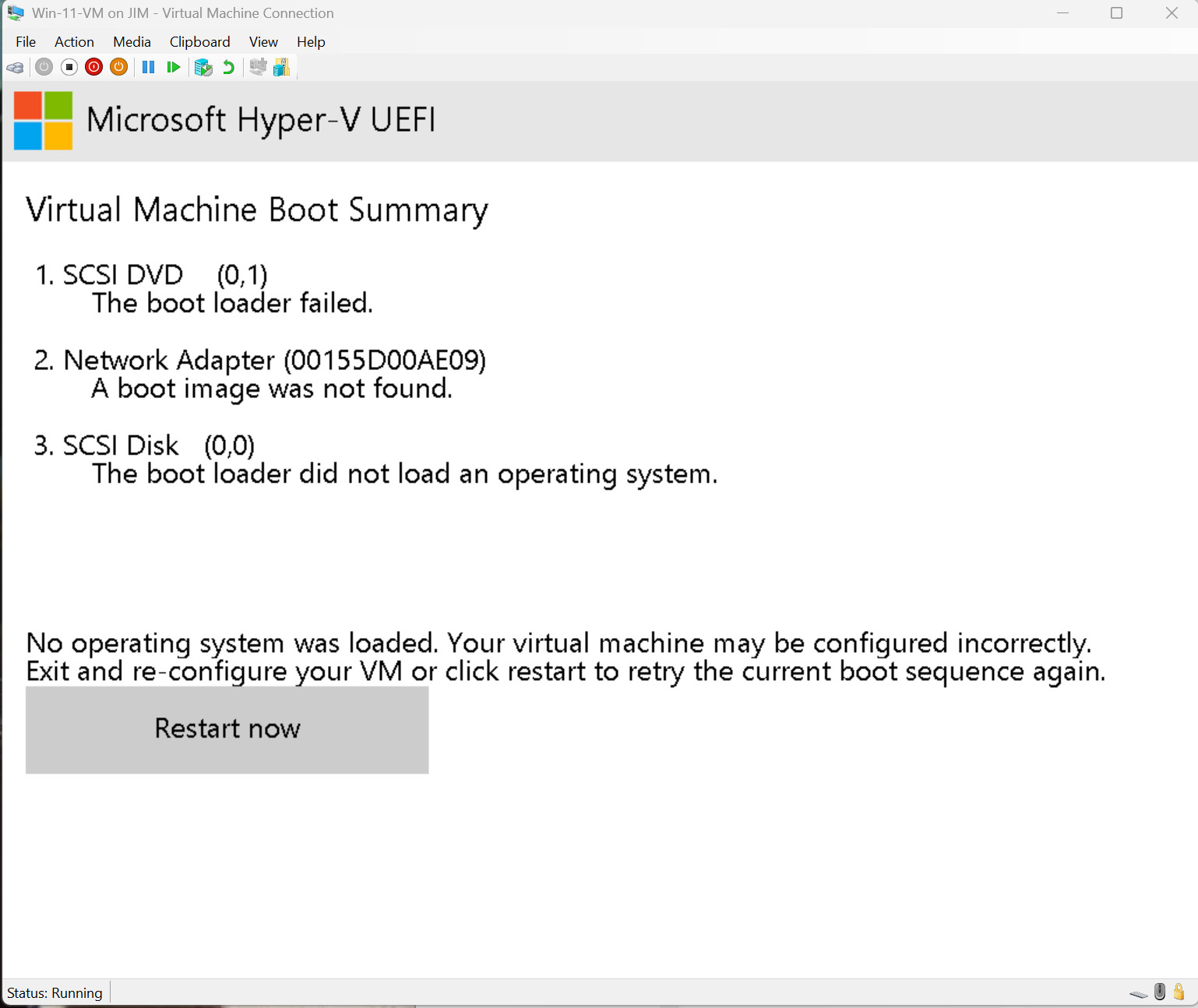
I'm trying to create a Windows 11 virtual machine using HyperV under Windows 11 Pro and all I keep getting is
2026-01-10_111340.jpg

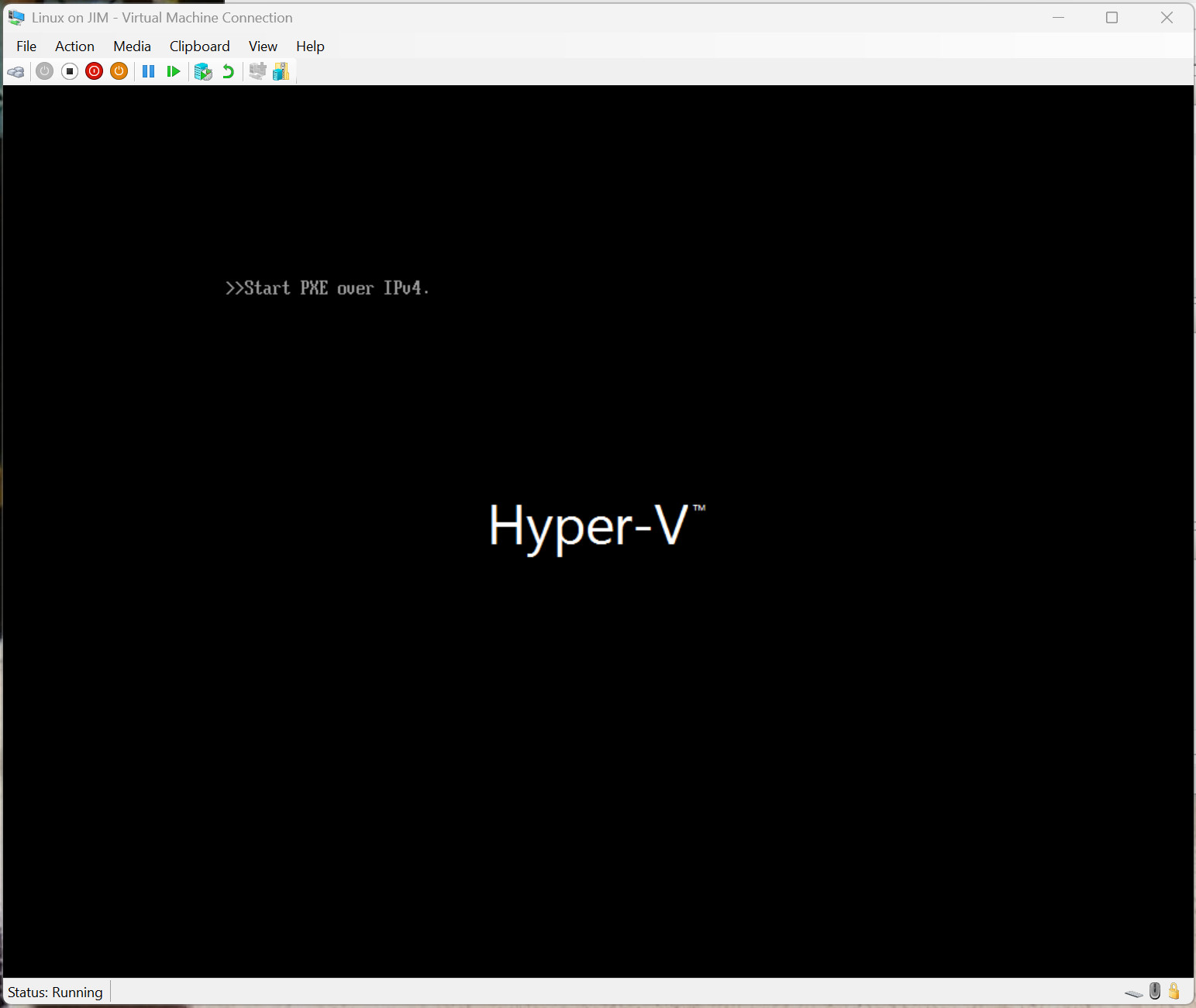
I dowloaded the current Windows 11 Pro bootable iso so I'mm assuming something in HyperV is misconfigured but I have no idea what. I've gone through all the ChatGPT recommended steps with no success. I've also tried to create a Linux VM with the result
2026-01-10_112708.jpg

Every single source I went to, every AI agent, every youtube video said that I absolutely had to select Generation 2 (UEFI) in order for it to work. Naturally, when I ignored that and selected Generation 1 (BIOS) it booted into the ISO but refused to continue without TPM enabled, which is impossible under Generation 1.

commented: That’s expected—Windows 11 needs TPM & Secure Boot, which only Gen 2 (UEFI) supports, so Gen 1 (BIOS) won’t proceed past setup. +0

So back to the original gen2 settings. To get to the install you MUST

  1. connect to the new VM
  2. click Start
  3. within about 1/10 of a second of seeing "Press any key to boo", press enter

If you wait longer than 1/10 of a second the boot will FAIL

commented: Boo! +17

No clue, I don't have Pro. I did see you can "uncheck Enable Secure Boot to bypass the TPM requirement." I'm sure you've already read that.

I guess I wasn't entirely clear in my last post. By going all Woody Woodpecker on the enter key after clicking Start I was able to get into the setup and complete the creation of the virtual machine. If anyone else has this problem I can post screen shots of the steps.

Reminds me of the time you had to do that to get into BIOS menu or beat the boot sequence to get to the boot menu so you could enter Safe Mode.

When I boot my new Thinkpad it pauses for 2-3 seconds with "Press Enter for alternate boot options" (may be not the exact wording).

commented: It wasn't like that in the 80's lol +9

Yes. That's why I marked it as solved. The virtual Windows 11 Pro is just zipping along. Of course, it helps to have a blazing fast machine running it.

Hello,

What I can help with is a solution for creating and managing the lifecycle of virtual disks for all versions of Windows.

The simplest solution for virtual disks in Delphi (RAD Studio) looks like this:

uses
  Windows;

var
  VirtualDiskFile: THandle;
  VirtualDiskAttributes: DWORD;

begin
  // Creating a virtual disk ...
  VirtualDiskFile:= CreateFile('F:\Backup\Music\Modules\virtual_disk', GENERIC_READ, FILE_SHARE_READ, nil, CREATE_ALWAYS, FILE_ATTRIBUTE_NORMAL, 0);

  if hFile <> INVALID_HANDLE_VALUE then
    begin

      // Setting virtual disk attributes ...
      VirtualDiskAttributes:= FILE_ATTRIBUTE_READONLY or FILE_ATTRIBUTE_HIDDEN;
      SetFileAttributes(VirtualDiskFile, VirtualDiskAttributes);

      ShowMessage('Virtual disk created successfully ');

    end
  else
    begin
      ShowMessage('System error occurred');
    end; 

  CloseHandle(hFile);

end.

A few more useful features that are related to virtual disks (what I have personally tested and proven to work).

// 1. CREATE VIRTUAL DRIVE
function VDCreate(DriveLetter: Char; const Path: String): Boolean;
var
  DrvNo: Byte;
  Buff : Array[0..256] of Char;
  FPath: String;

  function AddSlash(const Path: String): String;
  begin

    if (Path = '') or (Path[Length(Path)] <> '\') then Result:= Path+'\'
      else
    Result:= Path;

  end;

begin

    if Path[Length(Path)] = '\' then FPath:= copy(Path, 1, Length(Path)-1)
      else
    FPath:= Path;

    if Win32Platform = VER_PLATFORM_WIN32_NT then
      begin

        Buff[0]:= DriveLetter;
        Buff[1]:= ':';
        Buff[2]:= #0;

        Result:= DefineDosDevice(0, Buff, PChar(Path));

      end
    else
      begin

        FPath:= ExtractShortPathName(FPath);

        if FPath <> '' then
          begin

            DrvNo:= Ord(UpperCase(DriveLetter)[1])-64;
            StrPCopy(Buff, FPath);

            asm

            pushad
            push    es
            xor     ebx, ebx
            mov     bh,0
            mov     bl,drvno
            lea     edx,buff
            push    0       //ECX (unused)
            push    71AAh
            push    2A0010h
            call    VxDCall
            pop     es
            popad

            end;

          end;

        Result:= ANSIUpperCase(AddSlash(VDQuery(DriveLetter))) = ANSIUpperCase(AddSlash(Path));

      end;

end;

// 2. REMOVE VIRTUAL DRIVE
function VDRemove(DriveLetter: Char): Boolean;
var
  DrvNo: Byte;
  Drive: String;
  Path : String;

begin

    if Win32Platform = VER_PLATFORM_WIN32_NT then
      begin
        SetLength(Drive, 3);
        Drive[1]:= DriveLetter;
        Drive[2]:= ':';
        Drive[3]:= #0;
        Path  := VDQuery(DriveLetter);
        Result:= DefineDosDevice(DDD_REMOVE_DEFINITION,PChar(Drive), PChar(Path));
      end
    else
      begin

        DrvNo:= Ord(UpperCase(DriveLetter)[1])-64;

        asm

        pushad
        push    es
        xor     ebx, ebx
        mov     bh,1
        mov     bl,drvno
        push    0       //ECX (unused)
        push    71AAh
        push    2A0010h
        call    VxDCall
        pop     es
        popad

        end;

      Result:= VDQuery(DriveLetter) = '';

    end;

end;

// 3. VIRTUAL DRIVE QUERY
function VDQuery(DriveLetter: Char): String;
var
  DrvNo: Byte;
  Buff : Array[0..256] of Char;
  lBuff: Array[0..256] of Char;

begin

    if Win32Platform = VER_PLATFORM_WIN32_NT then
      begin

        lBuff[0]:= DriveLetter;
        lBuff[1]:= ':';
        lBuff[2]:= #0;
        Buff[0] := #0;

        QueryDosDevice(lBuff, Buff, 256);

        Result:= StrPas(Buff);

        if Copy(Result,1,4) = '\??\' then Result:= Copy(Result, 5, Length(Result))
          else
        Result:= '';
      end
    else
      begin

        DrvNo  := Ord(UpperCase(DriveLetter)[1])-64;
        Buff[0]:= #0;

        asm
          pushad
          push    es
          xor     ebx, ebx
          mov     bh,2
          mov     bl,drvno
          lea     edx,buff
          push    0       //ECX (unused)
          push    71AAh
          push    2A0010h
          call    VxDCall
          pop     es
          popad
        end;

        Result:= StrPas(Buff);

        if Result = '' then Exit;

        // Convert to longfilename ...
        asm

          // Expand long path ...
          pushad
          push    ds
          push    es
          xor     ebx, ebx
          lea     esi, buff
          lea     edi, lbuff
          mov     ecx,0
          mov     cl, 2
          mov     ch, 0
          push    ECX
          push    7160h
          push    2A0010h
          call    VxDCall
          pop     es
          pop     ds
          popad

        end;

      Result:= StrPas(lBuff);

  end;

end;

This is for virtual disks, and for virtual machines and protected solutions, there are different options.

How virtual disks work, and how we use them in our applications, you can see at:

Click Here

There is a module in the applications for direct contact with our technical support. The colleagues could provide you with assistance. They just got the information from Danny Web. I hope they can help you. Unfortunately, my knowledge is too limited, but they have quite a lot of practical experience. I will warn them.

Uhm., pretty sure this has been handled but i just thought to ask:

If you are creating awindows vm, you do need toto point the boot sequence at an install iso. Copy the iso to your drive and then doubleclick mount it on a drive letter.
Its probably way obbvious and i have missed what you meant, but i read those errors as it couldn't find the install it needs to boot off.

Hyper-V serves as an excellent built-in solution for Windows Pro and Enterprise users who want to run Windows virtual machines.

The setup process works well because I built a virtual machine before.

The process to create a virtual machine involves these steps:

The user must first enable Hyper-V through Windows features.

The user needs to launch Hyper-V Manager.

The user needs to create a new virtual machine which should use Generation 2 as the preferred option.

The user needs to attach a Windows ISO file to the virtual machine.

The user needs to assign RAM and CPU resources which require at least 4GB of RAM for adequate performance.

The user needs to start the virtual machine and proceed with the Windows installation process.

The following two points present essential advice based on my personal experience.

The user needs to check that enabling virtualization exists as an option in the BIOS or UEFI settings.

The user needs to use an external virtual switch to establish proper internet and network connectivity.

The system delivers satisfactory performance that meets needs for general usage and testing and development work, although it falls short during intensive GPU operations without GPU passthrough configuration.

Hyper-V functions effectively for testing software development environments and sandboxing activities.

Be a part of the DaniWeb community

We're a friendly, industry-focused community of developers, IT pros, digital marketers, and technology enthusiasts meeting, networking, learning, and sharing knowledge.